


Did scanner for volvo update automatically — short answer: most Volvo-compatible scanners do not fully auto-update by themselves. Bluetooth dongles update via your phone’s app store, while handheld/pro tablets (iCarsoft, Foxwell, Autel, Topdon) require Wi‑Fi or a PC tool and a manual tap to confirm. Turn on auto-download in settings where available, keep the device on stable power, and never interrupt firmware updates.
Wondering whether your Volvo scanner will keep itself current without you doing anything? Update behavior depends on the type: app-based Bluetooth adapters piggyback on your phone’s automatic app updates, while dedicated handhelds and tablet-style scanners use either Wi‑Fi or a Windows/Mac utility and still ask you to confirm. Newer EX/EC Volvo models use newer protocols (UDS/DoIP), so staying updated really matters for reliable connections. Below, you’ll see exactly which connection types work best, how to check model compatibility, what “auto-update” really means on popular tools, and a safe step-by-step you can follow to keep your scanner updated without risking a bricked device. For related context, you may also want to read did scanner for Volvo work well.
- Main point: “Auto-update” usually means auto-download; most Volvo scanners still need you to confirm and install.
- Best first step: Connect to Wi‑Fi (or the brand’s PC updater), sign in, and enable auto-downloads in settings.
- Cost or value: Many mid/advanced tools include 1–2 years of free updates; renewals often run $60–$150/year.
- Who it suits: DIYers who want reliable ABS/SRS/CEM access on XC90/XC60/XC40, plus owners of new EX/EC models.
- When to get help: If firmware fails or an update won’t complete, contact the brand’s support before retrying.
Wants Bluetooth or Wi‑Fi updates and iPhone/Android compatibility without buying dealer software.
Needs a scanner that updates regularly and can read other family cars at least at OBD2 level. You can also use can scanner for Volvo XC90 as a helpful next guide on the same ownership topic.
Upgrading from a basic code reader to a Volvo-capable unit with ongoing software support.
Connectivity Options: Bluetooth, Wi‑Fi, and USB on Volvo Scanners
Connectivity shapes how updates and daily use feel. Bluetooth dongles pair to your phone and rely on app updates from the App Store or Google Play. Handhelds and pro tablets connect by Wi‑Fi for in-tool updates or via USB to a PC updater. USB is still common for iCarsoft and Foxwell; Wi‑Fi dominates Autel and Topdon tablets. iPhone users should confirm BLE (Bluetooth Low Energy) support and the exact companion app.

Apple iOS blocks many classic Bluetooth serial adapters; choose BLE or Wi‑Fi dongles if you use iPhone. Handhelds don’t require a phone at all, so iOS/Android support is irrelevant for those.
The comparison table below shows typical iOS/Android paths and whether each option can work offline after setup. “Works offline” refers to scanning a Volvo without internet once the brand database is installed.
| Scanner | iOS app | Android app | Works offline? |
|---|---|---|---|
| iCarsoft VOL II (handheld) | N/A (standalone) | N/A (standalone) | Yes |
| Foxwell NT530 (Volvo software) | N/A (standalone) | N/A (standalone) | Yes |
| Autel MaxiAP AP200 (Bluetooth) | MaxiAP200 (iOS) | MaxiAP200 (Android) | Yes (after data install) |
| Autel MK808/MX808 (tablet) | N/A (built-in) | N/A (built-in) | Yes |
| Topdon Phoenix (tablet) | N/A (built-in) | N/A (built-in) | Yes |
| Generic ELM327 BLE | OBD Fusion / Car Scanner | Car Scanner / Torque Pro | Engine-only offline |
Volvo Model Compatibility: From XC Series to EX/EC Electric
Compatibility comes down to protocols and brand coverage files. Most mid-range and advanced tools read Volvo-specific modules on 2004–2014 models and 2015+ SPA/CMA cars (XC90/XC60/XC40/S60/V60/V90). Electric EX30/EX40/EC40/EX90 add newer UDS/DoIP coverage that not all scanners handle yet. Pre‑2004 cars may require older protocol support; check your exact year.
Generic OBD2 covers only the engine module. Volvo faults often live in SRS, ABS, CEM, TCM, or climate modules — invisible to a $20 reader. Updating your scanner adds new module coverage and bug fixes.
Use this grid as a quick look at current (typical) coverage status. Always verify the brand’s latest release notes for your VIN year.
| Scanner | XC90 | XC60 | XC40 | S60 | V60 | V90 | EX30 | EX40/EC40 | EX90 | Pre‑2004 |
|---|---|---|---|---|---|---|---|---|---|---|
| iCarsoft VOL II | Yes | Yes | Yes | Yes | Yes | Yes | Partial | Partial | Partial* | Limited |
| Foxwell NT530 (Volvo) | Yes | Yes | Yes | Yes | Yes | Yes | Partial | Partial | Partial* | Limited |
| Autel MK808/MX808 | Yes | Yes | Yes | Yes | Yes | Yes | Improving† | Improving† | Improving† | Varies |
| Topdon Phoenix Lite | Yes | Yes | Yes | Yes | Yes | Yes | Improving† | Improving† | Improving† | Varies |
| Generic ELM327 | Engine-only | Engine-only | Engine-only | Engine-only | Engine-only | Engine-only | No | No | No | Engine-only |
*Partial/Improving = support depends on software version; check the brand’s latest update notes.
Can a Volvo Scanner Be Used on Other Cars?
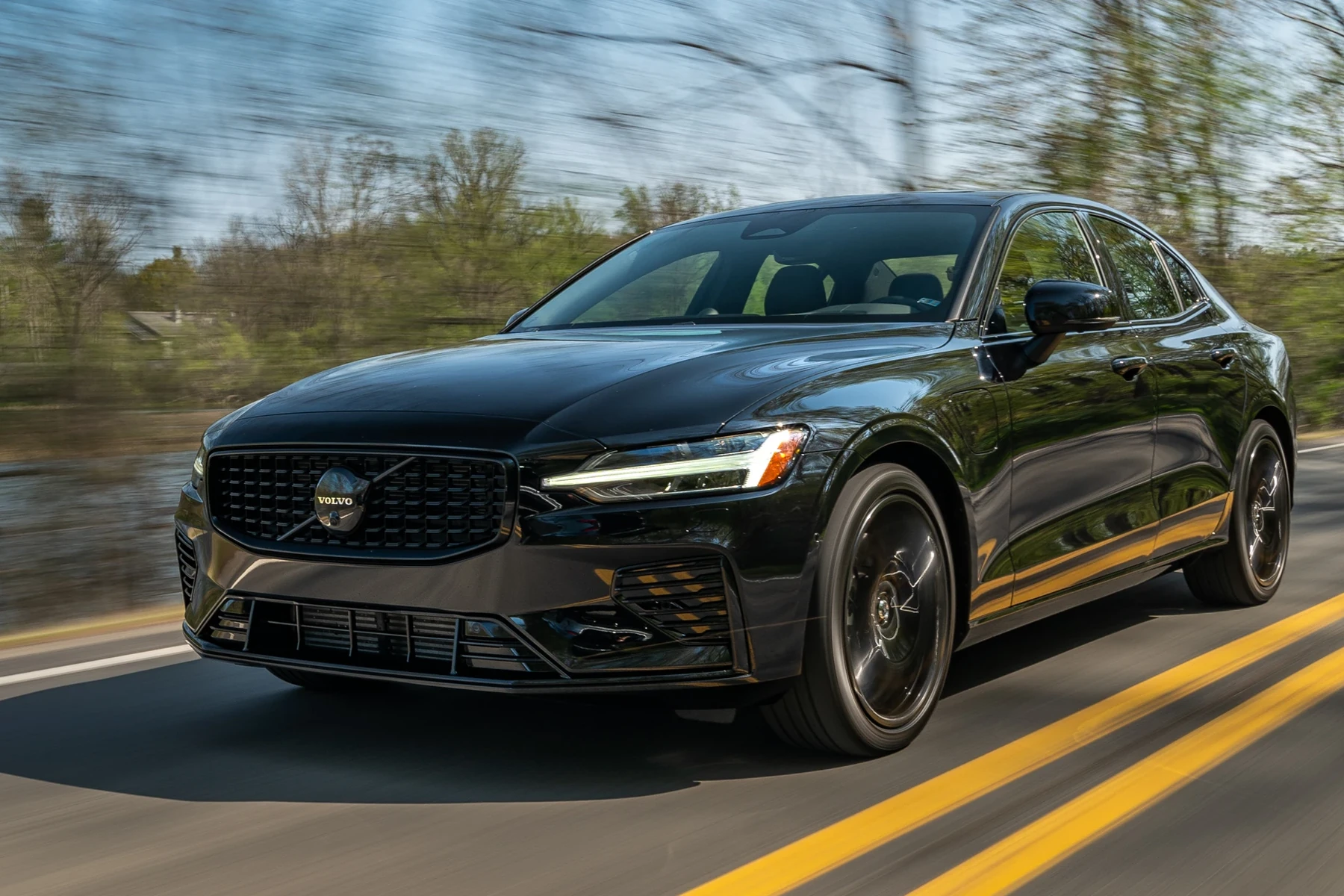
Yes — but the level of function changes. Volvo-focused handhelds (iCarsoft VOL II, Foxwell NT530 with Volvo software) read Volvo modules deeply and often read engine codes on other brands. App-based and pro tablets from Autel and Topdon frequently include full-brand libraries that update over time, bringing close-to-factory coverage on dozens of makes. Generic ELM327 dongles only read generic OBD2 codes anywhere.
- Check the brand’s vehicle coverage list by year/VIN before buying cross-brand coverage.
- Some tools require adding a second brand license (often $20–$80) for full-brand functions.
- Update the scanner first, then connect to the other car — new protocols often arrive via updates.
- Save a full report before clearing codes on a non-Volvo so you can compare after repairs.
For a deeper look at cross-brand use cases and limitations, see our guide on using a scanner for Volvo on other cars. The table below summarizes how different scanner tiers typically behave outside Volvo.
In short: mid/advanced scanners can be your single garage tool if kept updated; budget dongles remain engine-only beyond Volvo as well.
| Scanner/Tier | Full-brand support on other cars | OBD2-only on other cars | Notes |
|---|---|---|---|
| iCarsoft VOL II (handheld) | No (Volvo/Saab focus) | Yes | Great for Volvos; basic engine codes elsewhere |
| Foxwell NT530 (Volvo pkg) | No (Volvo pkg only) | Yes | Additional brand packages available at extra cost |
| Autel MK808/MX808 (tablet) | Yes (many brands) | N/A | Annual update plan expands coverage/features |
| Topdon Phoenix Lite | Yes (many brands) | N/A | Pro-level coverage; updates via Wi‑Fi |
| Autel MaxiAP AP200 (BLE) | Yes (per-brand add-ons) | N/A | One free brand; add more in-app for a fee |
| Generic ELM327 BLE/Wi‑Fi | No | Yes | Engine P-codes and live data only |
Does a Volvo Scanner Need Programming or Calibration? Update Policy Explained
There’s no “programming” required to start using a consumer scanner on a Volvo — plug in and scan. Certain post-repair procedures (TPMS relearn, steering angle sensor reset) are calibrations you run through the tool. Updates are separate: they add models, modules, and bug fixes. Most tools download automatically but require you to tap “Update” to install. Handhelds like iCarsoft and Foxwell use PC updaters; tablets from Autel and Topdon update over Wi‑Fi. This connects closely with are scanner for Volvo V60 if you want to compare the topic in more detail.
Never interrupt a firmware update. Keep the scanner on AC power (or fully charged), maintain Wi‑Fi, and do not unplug the OBD cable mid‑flash. Cloned devices are notorious for bricking during updates — avoid non‑authorized sellers.
Wi‑Fi update channel
PC updater (iCarsoft/Foxwell)
Subscription status
Typical update paths by brand:
- iCarsoft VOL II: Register the device on iCarsoft’s site, install the Update Tool on Windows/Mac, connect by USB, then download Volvo files. No silent auto-install — you approve updates. iCarsoft US Support
- Foxwell NT530: Use FoxAssist PC software to log in and update the Volvo package via USB. Manual confirmation required. Foxwell Tech
- Autel MK808/MX808: Connect to Wi‑Fi, sign in, open “Update,” then tap Update All. You can enable auto-downloads, but installation still prompts. Autel Updates
- Topdon Phoenix: Sign in over Wi‑Fi and run one‑tap updates within the app. Auto-download is available; user confirmation is still standard.
- Bluetooth dongles (AP200, etc.): App updates install via the App Store/Google Play automatically if you’ve enabled auto-updates; occasional firmware prompts will ask you to confirm on first connect.
What Volvo Modules Can Each Scanner Tier Access?
Module access defines whether a tool is “Volvo-capable” or just a check-engine light reader. Budget dongles see the engine only. Mid-range handhelds add ABS/SRS/TCM/CEM and service resets. Advanced tablets add bi-directional tests and more calibrations. Choose based on the systems you expect to diagnose.
| Module | What it does | Budget scanner | Mid-range | Advanced |
|---|---|---|---|---|
| ECM (Engine) | Fuel/air/ignition faults | Yes | Yes | Yes + live data graphs |
| TCM (Transmission) | Shift logic & solenoids | No | Yes | Yes + adaptations |
| ABS | Wheel speed & braking | No | Yes | Yes + bleed functions* |
| SRS (Airbag) | Crash sensors & pretensioners | No | Yes | Yes |
| CEM/BCM | Body & central electronics | No | Yes | Yes |
| SAS (Steering Angle) | Stability & alignment | No | Reset | Reset + calibrations |
| TPMS | Tire pressure monitoring | No | Resets | Resets + sensor ID write† |
| Climate/Infotainment | HVAC & media faults | No | Often | Yes |
*ABS bleeding/calibrations vary by model; †Some functions require a separate TPMS tool.
How To Update Your Volvo Scanner Safely
Keeping your scanner current ensures it connects to newer Volvo models and reads the latest modules. Updates can also fix intermittent connection bugs. Before starting, verify battery charge, Wi‑Fi strength (or PC connection), and your update subscription status. The steps below work for most consumer scanners (adjust Step 4 for your brand’s exact updater path). For another practical angle, see can scanner for Volvo XC60.
- Step 1: Power and network. Charge the scanner to 50%+ or plug into AC; connect to reliable Wi‑Fi (or a PC via USB for iCarsoft/Foxwell).
- Step 2: Sign in and check license. Open the brand’s Update/Toolbox app, confirm your account and that Volvo coverage is active.
- Step 3: Back up reports. Export or email any saved DTC reports before updating in case storage is wiped.
- Step 4: Download updates. On tablets, tap Update/Update All. On handhelds, run the PC updater to download/install Volvo packages.
- Step 5: Reboot and test. Restart the scanner, connect to the car, and perform a quick auto-scan to confirm module access.
During firmware updates, do not cycle the ignition or disconnect the OBD cable. If an update fails, stop and contact the tool’s support — repeated attempts can brick lower-quality hardware.
Need iPhone specifics? Check our detailed walkthrough on Volvo scanner compatibility with iPhone. For brand-by-brand updater steps, see our tutorial on updating scanner software for specific brands.
💡 Evans Torres Tip: I keep my Autel tablet on a garage shelf, plugged into AC, with Wi‑Fi auto-download enabled. Once a month I open the Update screen and tap “Install All.” On an older iCarsoft, I use the Windows updater after emailing myself any saved reports. That habit has kept my tools reading new Volvo modules — including newer EX models — without surprises.
Frequently Asked Questions
These FAQs focus on automatic updates, compatibility across Volvo generations (including EX/EC), and how different scanner types handle updates on iPhone and Android. Use them to fine-tune your setup and avoid common pitfalls like interrupted firmware, expired licenses, or buying a scanner that won’t cover your model year.
Do Volvo scanners update automatically without me doing anything?
Not fully. Tablets (Autel/Topdon) can auto-download over Wi‑Fi, but you still tap to install. Handhelds (iCarsoft/Foxwell) require a PC updater and manual confirmation. Bluetooth dongles rely on your phone’s app auto-updates; occasional firmware prompts still need your approval. Always enable auto-download in settings to minimize manual steps.
How often should I update a Volvo scanner?
Monthly is a safe rhythm for DIYers, especially if you work on multiple brands or newer Volvos. If you only scan occasionally, update before any major diagnostic session. New protocols and bug fixes arrive unpredictably — staying current improves connection reliability and module coverage.
Will updates add support for EX30, EX40/EC40, or EX90?
Often yes, progressively. Brands roll out UDS/DoIP coverage in waves. Check the release notes before renewing a subscription; you’ll typically see model-year and module lists. Some functions may be marked “beta” early on and improve with subsequent updates.
Do I have to pay for updates after the first year?
Many scanners include 1–2 years of updates. After that, optional renewals are common: roughly $60–$150/year for consumer/prosumer tools. Handhelds may allow continued use without renewals but won’t receive new coverage or bug fixes. Verify the brand’s policy at purchase.
Are updates different on iPhone vs Android?
For Bluetooth dongles, the app updates via App Store (iOS) or Google Play (Android). Some classic Bluetooth adapters don’t work with iOS; pick BLE or Wi‑Fi variants for iPhone. Handhelds and tablets are platform-agnostic — they update over Wi‑Fi or via a PC regardless of your phone.
Can an update erase my saved reports or settings?
Occasionally, major firmware updates reset user data. Back up DTC reports before updating (email them to yourself or export to a USB/PC). Brand release notes usually flag storage-impacting updates; when in doubt, back up.
What should I do if a firmware update fails?
Stop, don’t retry blindly. Keep the scanner powered, reconnect Wi‑Fi or USB, and contact the brand’s support with the error code. They can supply the correct recovery file or steps. Repeated failed attempts risk corrupting the bootloader on lower-quality or cloned hardware.
Are scanners for Volvo reliable after updates?
Yes, provided you use legitimate hardware and keep software current. Updates typically improve stability and coverage. For a buying confidence check, see our take on whether Volvo scanners are reliable and avoid clone listings that often fail during updates.
Final Verdict
Automatic updates on Volvo scanners are mostly “automatic downloads” — you still approve and install. Bluetooth dongles stay current through your phone’s app updates; handhelds and pro tablets need Wi‑Fi or a PC utility plus a tap to proceed. Enable auto-download, keep subscriptions active when you need the newest coverage (especially for EX/EC models), and never interrupt firmware. Before your next diagnostic session, run updates first and save any existing reports. For iPhone specifics and cross-brand use, see our guides on iOS compatibility and using Volvo scanners on other cars, then keep a simple monthly update routine to avoid connection headaches.
My Top Picks at a Glance
Here are the three did scanner automatically options I would check first if you want a faster buying decision.
These picks highlight the strongest overall choice, the best value option, and the premium-style pick for practical Volvo ownership.
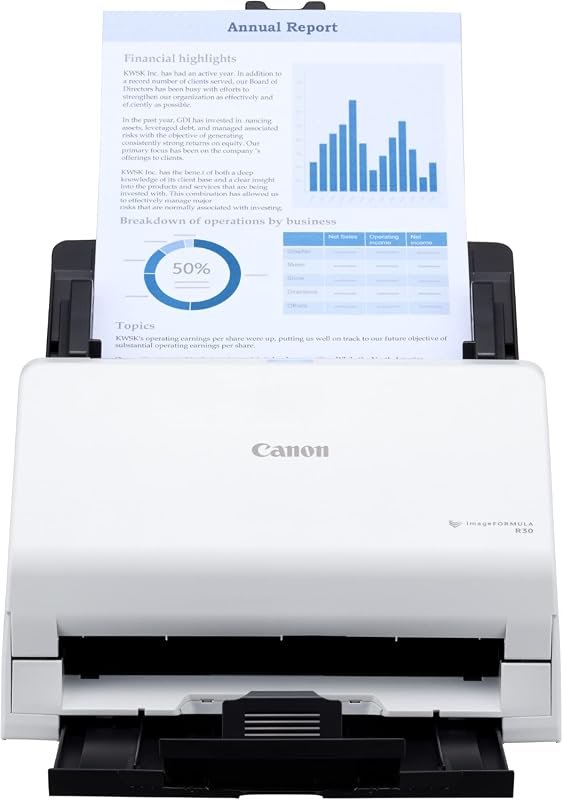 Best Overall
Canon imageFORMULA R30 office document scanner with ADF, fast duplex scanning, plug-and-scan, no software required.
It offers the strongest all-around mix of fit, value, and practical daily use for Volvo owners.
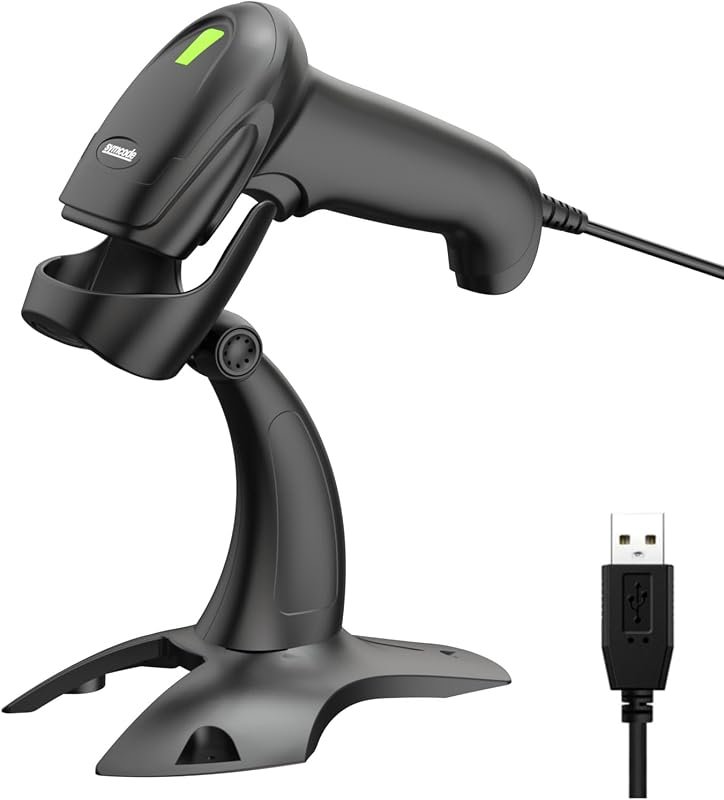 Best Value
USB wired barcode scanner with stand, 2D/1D QR support, automatic hands-free scanning for POS, Mac, PC.
It makes sense for owners who want a useful upgrade without paying more than necessary.
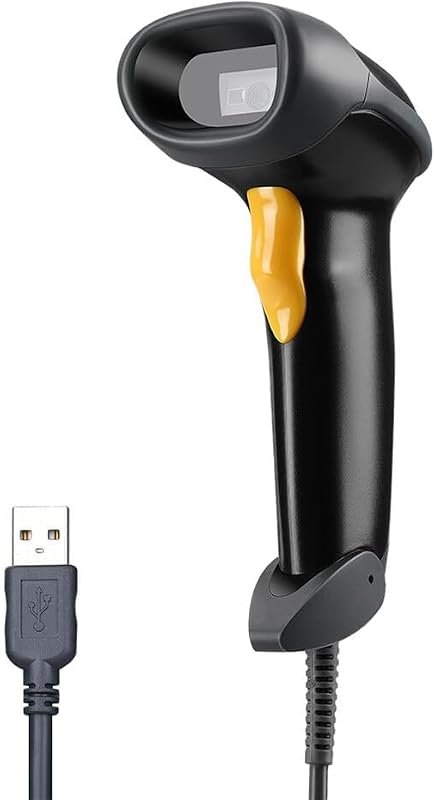 Best Premium Option
Eyoyo EYH2 handheld USB barcode scanner, 2D/1D QR, PDF417, Data Matrix, long cable for POS.
It is the pick I would compare first if build quality, features, and long-term ownership value matter most.
Author

Author

Evans Torres
I’m Evans Torres, an automotive engineer who loves Volvo cars. I graduated in Automotive Engineering from USC. I have worked in the car industry for years and now share my knowledge on The Volvo Life. I started this blog to connect with other Volvo fans. I offer tips, news, and advice to help you care for your car. My goal is to help you keep your Volvo in great shape and find all the best things about it. Join me as we discover everything Volvo has to offer!