


Did scanner for Volvo update automatically? Usually no. Most Volvo-capable scanners require you to trigger software/firmware updates via a PC suite or WiFi on the device; a few app-based dongles auto-prompt in-app. Expect free updates for 1–3 years, then paid renewals for some brands. Always update before scanning newer SPA/UDS models (XC90 2015+, XC60 2018+, EX/EC series). If the tool won’t update or loses Volvo coverage, check your subscription status and contact the brand’s support before attempting advanced functions.
Seeing new warnings or buying a newer Volvo often raises one question: will your scanner refresh itself, or do you need to handle updates? Connectivity, brand policy, and model-year coverage all affect how updates arrive. Some Android tablet-style units fetch updates over WiFi; handhelds typically need a PC; Bluetooth dongles rely on iOS/Android apps. The right approach keeps Volvo module access intact (SRS, ABS, CEM, TCM) and prevents “no communication” errors on newer UDS-protocol cars like the EX30/EX90. For related context, you may also want to read OBD scanner for Volvo.
- Main point: Most Volvo scanners do not update automatically; you initiate updates via PC software, WiFi on the device, or a mobile app.
- Best first step: Log into the brand’s update portal/app, connect to stable WiFi, and update before scanning a newer Volvo.
- Cost or value: Many brands include 1–3 years of updates; renewals often run $50–$150/year (or per-brand pack for dongles).
- Who it suits: DIY Volvo owners using iCarsoft/Foxwell/Autel and app-based users (Autel AP200, Car Scanner + ELM327) across multiple cars.
- When to get help: If firmware fails or the tool bricks mid-update, stop and contact the manufacturer; don’t attempt coding on a half-updated device.
Wants Bluetooth/WiFi convenience and to manage updates on iPhone/Android without a PC.
Uses a handheld or tablet-style unit and needs reliable Volvo module coverage after each update.
Plans to scan other brands too and needs a tool with cross-make support and clear update policies.
Connectivity Options for Volvo Scanners (and How Updates Actually Arrive)
Automatic updates depend on how the scanner connects. Handheld units like iCarsoft VOL II or Foxwell NT530 usually update through a Windows/Mac utility via USB. Android tablet-style tools (Autel MK808/Topdon ArtiDiag) check servers over WiFi and prompt you to install new brand packages. Bluetooth dongles (Autel AP200, generic ELM327) update their apps through the App Store/Google Play; some also download brand data inside the app. iPhone users should confirm that the dongle’s app supports iOS before buying. This connects closely with which scanner icarsoft for Volvo S80 2002 if you want to compare the topic in more detail.
Below is a quick iPhone/Android compatibility look at common scanner types and whether they operate offline after setup. This helps you decide how—and where—you’ll handle future updates.
| Scanner | iOS app | Android app | Works offline? |
|---|---|---|---|
| iCarsoft VOL II (handheld) | N/A (device UI) | N/A (device UI) | Yes (post-update) |
| Foxwell NT530 (handheld) | N/A (device UI) | N/A (device UI) | Yes (post-update) |
| Autel MaxiCOM MK808 (Android tablet) | No (device is Android) | Built-in on device | Yes (post-update) |
| Autel AP200 (Bluetooth dongle) | Autel app (iOS) | Autel app (Android) | Yes (brand pack cached) |
| ELM327 Bluetooth (generic) | OBD Fusion/Car Scanner | Torque Pro/Car Scanner | Yes (basic OBD-II) |
Handhelds don’t need a phone; they store Volvo coverage internally after a PC/WiFi update. App-based dongles rely on your phone’s app updates; keep your iOS/Android app current to avoid connection glitches.
Many scanners include free updates for 12–36 months. After that, brands may require a renewal to access the latest Volvo coverage—especially for newer UDS-based models. Check your account/subscription before a big repair session.
Volvo Model Compatibility and Updates: XC90, XC60, EX/EC Series
Volvo protocol shifts matter. P2/P3-era Volvos (2004–2014) differ from SPA/CMA (2015+) and the latest EX/EC electric lineup using UDS. A scanner that worked fine on a 2012 S80 may need an update for a 2019 XC60, and a further package to talk to EX30/EX90. Before you assume “it just works,” verify the brand’s current Volvo list and update the device so you don’t lose access to ABS/SRS/TPMS or service resets on newer models.
The table shows typical coverage expectations by scanner type versus Volvo models. Use it as a directional check; always confirm support by your exact model year and software version.
| Scanner | XC90 (2015+) | XC60 (2018+) | XC40 | S60/V60/V90 (SPA) | EX30/EX40/EC40/EX90 | Pre-2004 |
|---|---|---|---|---|---|---|
| iCarsoft VOL II | Full on most modules (with latest update) | Full on most modules | Full/Most | Full/Most | Partial/Developing support | Limited/Varies |
| Foxwell NT530 (Volvo SW) | Full/Most | Full/Most | Full/Most | Full/Most | Partial/Check updates | Limited/Varies |
| Autel MaxiCOM MK808 | Full/Most (with active updates) | Full/Most | Full/Most | Full/Most | Growing UDS support | Basic–Moderate |
| Autel AP200 (brand pack) | Moderate | Moderate | Moderate | Moderate | Limited | Basic |
| ELM327 + app | Engine-only | Engine-only | Engine-only | Engine-only | Engine-only | Engine-only |
For SPA/UDS cars and the EX/EC family, keep updates current. New module IDs and data structures appear over time; an out-of-date tool may fail hands-on jobs like SRS fault reading or TPMS resets.
EX30/EX90 and newer EX/EC models rely heavily on UDS messaging. Many scanners add or refine UDS coverage through software updates—not hardware changes—so staying current can unlock features you didn’t have last year.
Can a Volvo Scanner Be Used on Other Cars—and Will It Auto-Update There Too?
Most Volvo-focused tools also read other brands—at least basic OBD-II engine codes. Mid-tier and advanced units (Autel/Foxwell/Topdon) often include full-brand packs or à la carte brand purchases inside their ecosystems. Updates are still not magic: Bluetooth dongles update via the mobile app; tablet tools prompt over WiFi; handhelds need a PC client. Cross-brand use is great for multi-car garages, but verify that your subscription includes the extra makes you plan to service.

Here’s a quick summary comparing cross-brand capability against how updates are delivered and what ongoing costs look like. This helps set realistic expectations before you switch between different makes in your driveway.
In short: cross-brand works, but update methods and costs differ by tier. Keep your app/device logged in and renewed if required—auto-update prompts won’t appear on expired accounts.
| Scanner/Tier | Cross-brand support | Update delivery | Typical update cost |
|---|---|---|---|
| ELM327 + app | Basic engine codes on most cars | App Store/Play app updates | Free app updates; pro app add-ons vary |
| Autel AP200 | Multiple brands via paid packs | In-app download over WiFi | Brand pack purchase/renewal |
| iCarsoft VOL II | Volvo/Saab focus; basic OBD on others | PC suite (USB) | Free/low-cost within support window |
| Foxwell NT530 | Brand-specific package; others purchasable | PC suite (USB) | $0–$100/yr depending on packs |
| Autel MK808 | All-makes with strong coverage | On-device WiFi | $100–$150/yr typical |
For deep dives into update procedures by brand, see our step-by-step refresher: how to update scanner software for specific brands.
Do Volvo Scanners Need Programming or Calibration After Updates?
No special programming is required just because you updated the tool. Updates simply add coverage, fix bugs, or improve UDS support. However, certain service functions you perform with the scanner may require calibrations after repairs—think steering angle sensor (SAS) reset after alignment or TPMS relearn after tire service. None of these are “programming the car” in the dealer sense; they’re guided service routines. Keep the car’s 12V system well-supported during any long procedures. You can also use are scanner for Volvo worth it 2 as a helpful next guide on the same ownership topic.
Never run long adaptations or resets on a low-voltage vehicle. Use a battery maintainer (13.0–13.6V) for extended sessions. Avoid clearing SRS (airbag) faults until you’ve fixed the physical issue—otherwise the airbag system may not function in a crash.
iOS/Android app
UDS (EX/EC) support
SRS/ABS access
What Volvo Modules Can Your Scanner Access After Updating?
Module access varies by tier and whether you’ve kept the device current. Budget readers stick to engine (ECM) only; mid-range handhelds add ABS, SRS, TCM, BCM, CEM, and service resets; advanced tablets add live data streams, actuation tests, and more reset menus. If your goal is to diagnose modern Volvos without the dealer, aim for mid-range or better and keep updates enabled so new module IDs remain visible on SPA/UDS cars.
| Module | Budget (ELM327) | Mid-range (VOL II/NT530) | Advanced (MK808/X431) |
|---|---|---|---|
| ECM (Engine) | Read/clear | Full + live data | Full + advanced data |
| TCM (Transmission) | No | Read/clear + data | Full + adaptations (varies) |
| ABS | No | Read/clear + bleed (varies) | Full + tests |
| SRS/Airbag | No | Read/clear (post-repair) | Full + component data |
| CEM/BCM | No | Read/clear | Full + actuation (varies) |
| TPMS | No | Reset (some models) | Reset + sensor IDs (varies) |
| Climate/IPC | No | Read/clear | Read/clear + tests |
Advanced tools don’t replace VIDA/VOCOM for ECU programming, but they’re strong for diagnostics and service resets when kept up to date.
- Before any session, connect to WiFi (or PC suite) and check for Volvo package updates.
- Update the mobile app itself if you use a Bluetooth dongle; app bugs can block connections.
- Screenshot or export DTCs before clearing; updates can change code text formatting.
- Keep a simple change log: date, update version, car scanned, and outcomes.
Want a primer on pro-level workflows? Our walkthrough on using a professional car scanner for Volvo vehicles covers scanning sequences and saving reports.
How To Update a Volvo Scanner Safely
Updating first prevents “no communication” errors on newer Volvos and improves stability. Skipping updates can hide modules (SRS/ABS/TPMS) or mislabel codes. Plan 10–20 minutes, stable WiFi (or a PC with USB cable), and a fully charged scanner. For app-based dongles, ensure your phone OS and app are current. After updating, test on the vehicle with ignition on and run a short scan to confirm access before starting any resets or adaptations. For another practical angle, see are scanner for Volvo worth it.
- Sign in and verify coverage: Log into the brand portal/app, confirm Volvo is activated, and note your subscription/expiry.
- Charge and connect: Fully charge the scanner or keep it on AC power; connect to stable WiFi or your PC update utility.
- Download Volvo packages: Select Volvo (and any other makes you need) and install all available software/firmware updates.
- Reboot and cache data: Restart the device/app so databases reindex; on app tools, open the Volvo brand pack once to finish caching.
- Test on the car: With ignition on, run an auto-scan. Confirm modules respond (ECM, TCM, ABS, SRS). Save a test report.
Clone/counterfeit scanners can fail mid-update and brick themselves—or corrupt vehicle communications. Buy from authorized sellers only. If an update freezes, don’t unplug; contact the manufacturer’s support for recovery steps.
Shopping scanner options? Start with our overview of an OBD2 scanner for Volvo vehicles and, if you own an XC60, see model notes in our XC60 scanner guide.
💡 Evans Torres Tip: I keep an Autel MK808 on WiFi and an iCarsoft VOL II as a backup. Before scanning a 2019+ XC60, I always tap “Update” on the MK808—once, an ABS code wouldn’t populate until I did. I also export a baseline report before clearing anything. That one habit saved me from chasing a ghost DTC that vanished after a steering-angle reset.
Frequently Asked Questions
This FAQ answers the most common questions about scanner updates for Volvos: whether updates happen automatically, how to update popular tools, subscriptions and costs, cross-brand use, coverage for EX30/EX90, safety during firmware updates, and what to do if a scanner stops connecting after an update. Use these quick references to keep your tool current and your Volvo modules accessible without an unnecessary dealer visit.
Do Volvo scanners update automatically?
Rarely. Most handhelds (iCarsoft, Foxwell) require a manual update via a PC utility. Android tablet tools (Autel MK808) prompt over WiFi, but you still need to accept and install. App-based dongles (Autel AP200) update inside the app. Keep your account logged in and subscriptions current, or auto-prompts may stop appearing.
How do I update an iCarsoft VOL II for Volvo coverage?
Install the iCarsoft update manager on your PC, connect the tool via USB, sign in, and select Volvo to download the latest database/firmware. Let the progress bars finish, then safely eject and reboot the tool. Updates add modules and fix bugs—especially helpful on SPA/UDS cars. Always test on the vehicle afterward.
Do I need to pay for scanner updates?
Many brands include 1–3 years of free updates. After that, some charge $50–$150/year or per-brand pack (common on dongles). If you only scan older models, you might skip renewals; for newer SPA/UDS Volvos or EX/EC models, paid renewals usually preserve full module access and better stability.
Will my Volvo-capable scanner work on other car brands?
Yes, to varying degrees. ELM327 dongles read basic engine codes on most makes. Mid/advanced tools from Autel/Foxwell/Topdon offer broader cross-make diagnostics, sometimes requiring additional brand packs. Updates still follow the same rule—manual acceptance on WiFi/app/PC, not true “automatic” installs.
Are updates required for EX30/EX90 and other EX/EC models?
Almost always. EX/EC models rely on UDS messaging that evolves. Without current software, tools may miss modules or fail to connect. Before your first EX/EC scan, update the device/app and verify the release notes mention UDS/EX-series coverage. Expect more frequent updates as these models mature.
Is it safe to update scanner firmware myself?
Yes—if you follow the brand’s instructions. Keep the scanner on AC power or fully charged, use stable WiFi, and avoid interrupting the process. If an update hangs, don’t disconnect; contact support for a recovery procedure. Never perform in-car coding on a half-updated device.
My scanner stopped connecting after an update—what now?
First, reboot the device/app and your phone (if using a dongle). Re-log into the brand account, clear Bluetooth pairings if applicable, and re-download the Volvo package. Check subscription status and try another vehicle module (e.g., ECM). If it still fails, roll back if offered or contact the brand’s tech support.
Final Verdict
Most scanners do not update automatically; you must accept and install updates via app, WiFi, or a PC utility. Make updates your first step before scanning SPA/UDS Volvos and the EX/EC family so SRS, ABS, TPMS, and other modules respond correctly. Keep subscriptions current where required, power the tool during updates, and avoid long resets on a low-voltage vehicle. For deeper coverage and usage techniques, review our linked guides. When an update fails or a device bricks, stop and contact the manufacturer before attempting advanced procedures.
My Top Picks at a Glance
Here are the three did scanner automatically options I would check first if you want a faster buying decision.
These picks highlight the strongest overall choice, the best value option, and the premium-style pick for practical Volvo ownership.
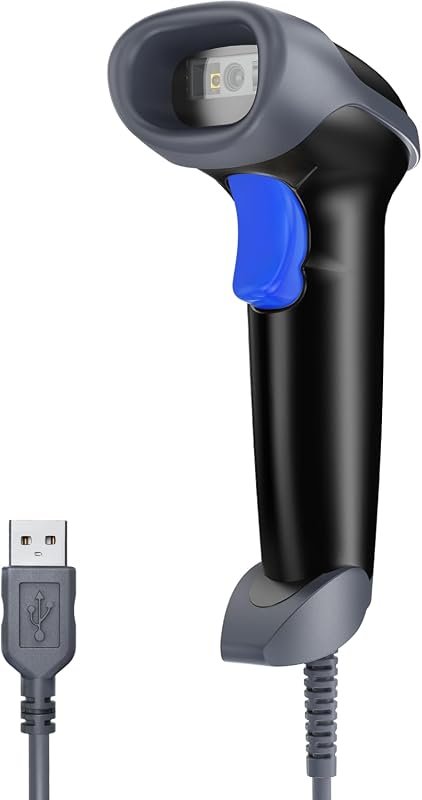 Best Overall
Eyoyo USB handheld 2D QR barcode scanner, auto-sensing, long cable; supports PDF417, Data Matrix for POS.
It offers the strongest all-around mix of fit, value, and practical daily use for Volvo owners.
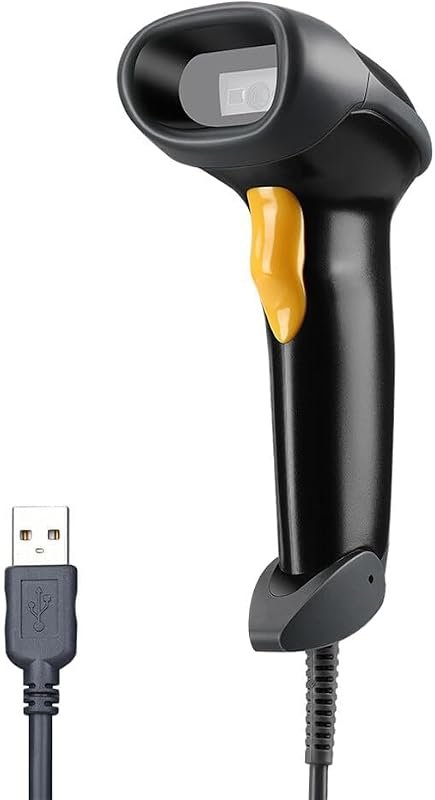 Best Value
Eyoyo EYH2 USB wired 2D/1D barcode scanner, auto-sensing, long cable; reads QR, PDF417, Data Matrix.
It makes sense for owners who want a useful upgrade without paying more than necessary.
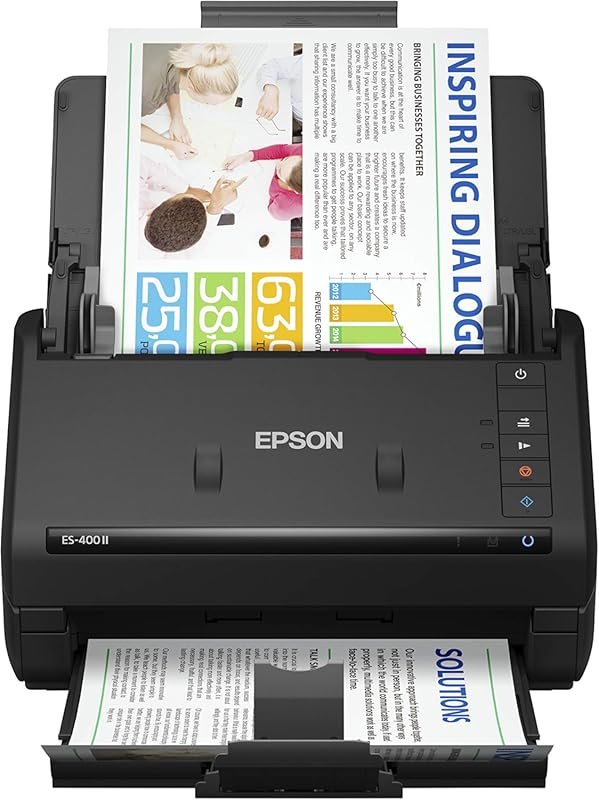 Best Premium Option
Epson WorkForce ES-400 II high-speed color duplex document scanner for PC/Mac with Auto Document Feeder, image adjustment.
It is the pick I would compare first if build quality, features, and long-term ownership value matter most.
Author

Author

Evans Torres
I’m Evans Torres, an automotive engineer who loves Volvo cars. I graduated in Automotive Engineering from USC. I have worked in the car industry for years and now share my knowledge on The Volvo Life. I started this blog to connect with other Volvo fans. I offer tips, news, and advice to help you care for your car. My goal is to help you keep your Volvo in great shape and find all the best things about it. Join me as we discover everything Volvo has to offer!