


If your Volvo won’t connect to the Volvo Cars app, the usual culprits are a lapsed connected-services subscription, weak cellular coverage, an outdated app, mismatched Volvo ID/ownership status, or a telematics glitch. First, update the app and your phone OS, then reboot your phone and your car’s infotainment. Next, log out/in of the app and reauthenticate as the car’s owner. If that fails, remove and re-add the vehicle in the app. Contact a Volvo retailer if the car stays offline or shows SOS/On Call errors.
When your Volvo won’t connect to the Volvo Cars app (formerly Volvo On Call), remote lock/unlock, preconditioning, and vehicle status simply stop working. Owners across XC40, XC60, XC90, S60, V60, and newer “Google built-in” models face this occasionally due to app, network, or vehicle-side issues. In this guide, I’ll show you what it means, common symptoms and causes, and the exact steps I use as an engineer to get Volvos reconnected quickly. If you need a broader rundown first, check our focused guide on app-specific quirks here: Volvo Car App Not Working.
- Main point: Most connection failures trace to account/ownership mismatches, expired services, cellular gaps, or a simple software glitch.
- Best first step: Update the Volvo Cars app, then reboot your phone and the car’s infotainment. Re-log with your Volvo ID.
- Cost or value: Software fixes are $0. Dealer diagnosis runs ~$150–$200; hardware fixes vary.
- Who it suits: DIY-friendly for most owners; dealer help if SOS/On Call errors persist.
- When to get help: If the car shows persistent “offline”/SOS faults or re-pairing repeatedly fails.
As an Amazon Associate I earn from qualifying purchases. Product availability, compatibility and listing details can change, so confirm the exact fit for your Volvo before ordering.
What This Problem Means
When the Volvo Cars app won’t connect, your vehicle’s embedded modem (TCU) isn’t completing a secure handshake with Volvo’s backend, or the app on your phone can’t validate your ownership and permissions. The connection doesn’t use your phone’s Bluetooth for remote commands; it relies on the car’s built-in cellular link to Volvo servers, then the app talks to those servers. If any part of this chain breaks—app auth, server response, vehicle cellular link—remote functions won’t work, even though Bluetooth or Android Auto/CarPlay might still be fine.
For newer Google built-in models, vehicle data-sharing and consent settings also gate what the app can access. For Sensus-era cars, the “On Call/SOS” module manages the modem and can throw faults when voltage is low or the unit glitches.
Common Symptoms
You can usually tell where the fault lies by watching how the app and the car behave. The patterns below narrow whether the issue is on your phone, on Volvo’s servers, or in the car’s modem and settings. Not all symptoms occur together; match what you see to the most probable cause and test in the next sections.
- App shows “Unable to connect,” “Vehicle offline,” or spinning loader forever.
- Remote lock/unlock or preconditioning buttons fail with errors or time out.
- Vehicle status (fuel/charge, doors, tire pressure) is outdated by hours or days.
- Multiple drivers can’t connect, suggesting a car-side or server-side issue.
- Car displays SOS/On Call errors, or “Limited connectivity” messages.
- Works only in some areas, hinting at cellular coverage problems.
- After a service visit or ownership change, the app no longer recognizes the car.
Common Causes
Most connection failures trace to a short set of root causes. Understanding these helps you prioritize fixes. Start with zero-cost software and account checks, then look at vehicle power, settings, and finally hardware or dealer-level provisioning if the car won’t come online at all.
- App/account issues: Outdated app, corrupted cache, or you’re not set as the vehicle’s owner/primary driver in Volvo ID.
- Expired trial/subscription: Connected services lapse after trials if not renewed, limiting or disabling remote features.
- Vehicle data consent off: Data-sharing or remote services toggled off in-car (especially on Google built-in models).
- Poor cellular coverage: The car’s embedded modem needs network; garages/low-signal zones can block it.
- 12V battery low: A weak main battery puts the modem to sleep or throws SOS/On Call faults.
- Infotainment/TCU glitch: Software hang requiring a reboot or re-pair.
- Server-side outage: Temporary Volvo backend issues causing widespread failures.
- Post-service provisioning: Module replacement or software update that needs reactivation or Volvo ID re-link.
- VPN/permissions on phone: Aggressive VPN/firewall or disabled Location/Bluetooth permissions blocking the app’s local checks.
How To Fix The Problem
This streamlined fix sequence resolves the majority of Volvo Cars app connection issues at home in minutes. It focuses on no-cost actions first, then on re-establishing a clean trust relationship between the app, your Volvo ID, and the car’s telematics module. Do each step in order and recheck the app before moving on—you’ll often regain access partway through.
- Step 1: Confirm connected-services status and data sharing. In the app, verify your vehicle is listed and you are the owner/primary driver. In the car, enable data sharing/remote services (Google built-in: Settings > Privacy or Connectivity).
- Step 2: Update and restart. Update the Volvo Cars app and your phone’s OS. Force close and relaunch the app, then fully restart your phone to clear cached sessions.
- Step 3: Reboot the car’s infotainment. Hold the home button (Sensus) or press/hold volume/power (Google built-in) for 10–15 seconds to soft-reboot. Let the system fully reload before testing the app.
- Step 4: Reauthenticate Volvo ID. In the app, log out, then log back in. In the car, confirm your Volvo ID is signed in on your driver profile. Remove extra profiles that may hold ownership.
- Step 5: Remove and re-add the vehicle. In the app, remove the car, then add it again and complete the in-car pairing flow using the on-screen code. Test remote lock/unlock and status refresh.
How To Diagnose The Issue
Diagnosis helps you decide whether to keep troubleshooting at home or book a Volvo retailer visit. The key is isolating whether the fault is phone/app-side, server-side, or car-side. Use these checks to triangulate the point of failure, and keep notes of messages or timestamps—they’re useful if you escalate to support.
First, try the app on a second phone with a different data connection. If both phones fail, the problem is likely car-side or server-side. Next, move the car outdoors or to an area with known strong cellular coverage and try again. If the status updates after a short drive, signal was the issue. Check the car for SOS/On Call warnings; persistent messages often mean low battery voltage or a telematics fault. Finally, see if multiple drivers on the same Volvo ID family have identical errors—another clue the car itself is offline.
If you recently had service or a windscreen/antenna repair, ask the shop whether the TCU or shark-fin antenna was disturbed and if provisioning was completed.
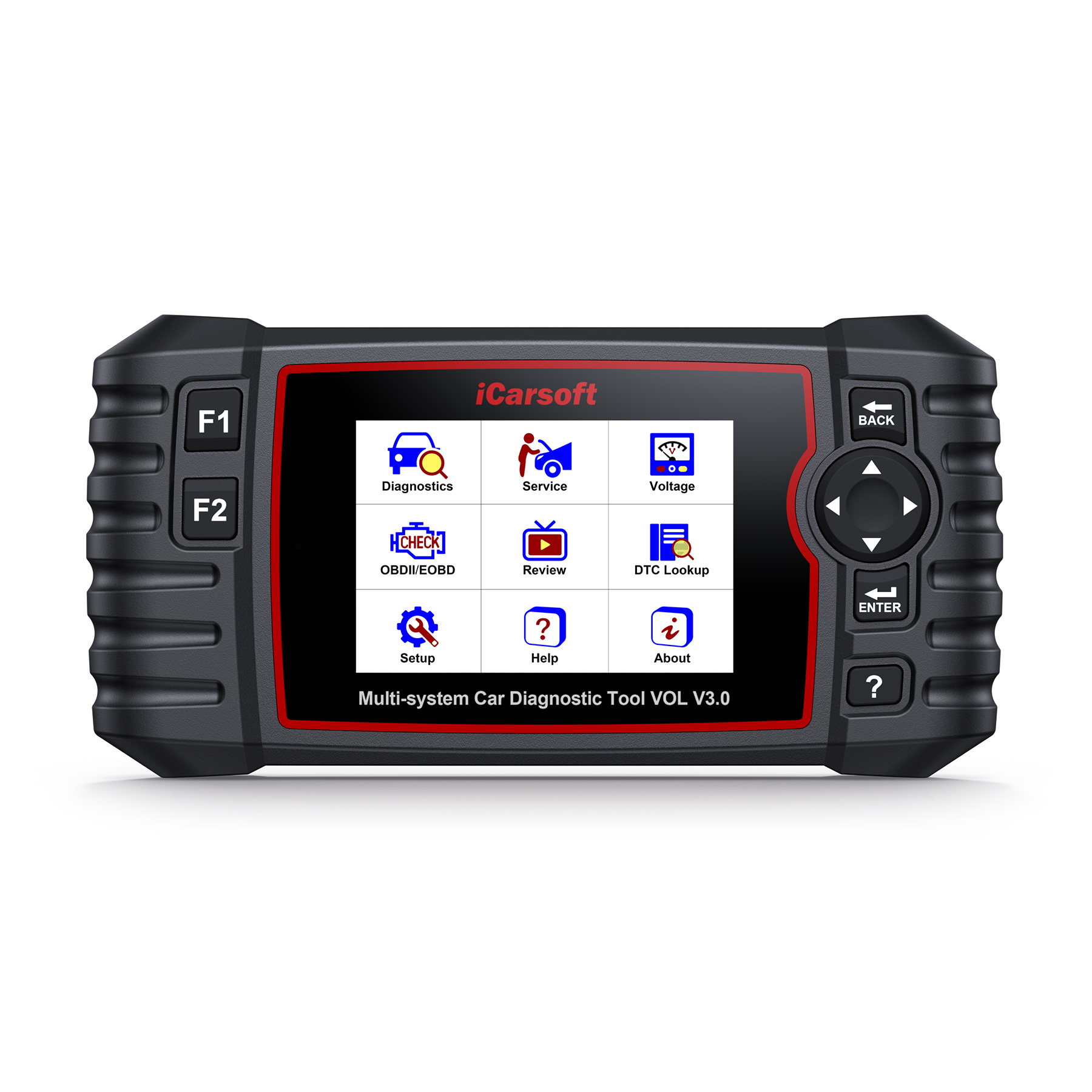
Want to Check the Car for Stored Fault Codes First?
iCarsoft VOL V3.0 for Volvo/Saab is the most natural tool for this point in the troubleshooting flow. It is designed for Volvo/Saab diagnostics and can scan supported vehicle systems, helping you check for stored faults before paying for deeper diagnosis.
Best for: Volvo owners who want a dedicated scanner rather than a basic generic code reader.
Repair Cost
Most connectivity problems cost nothing to fix—updates, reboots, and re-pairing handle the majority. Costs arise when subscriptions lapse, diagnosis is needed, or hardware fails. The estimates below reflect typical U.S. ballparks; always confirm with your Volvo retailer before authorizing work.
- Software/app fixes: $0
- Dealer diagnostic fee: ~$150–$200 (varies by market and promotions)
- Subscription renewal: Price depends on Volvo’s connected package and term
- 12V battery (if weak): Varies by model and spec; confirm with testing before replacing
- Telematics/antenna faults: Parts and labor vary widely based on model year and module
Before replacing anything, have the 12V battery load-tested and ask the dealer to check TCU fault codes and provisioning status. Issues tied to a recent repair may be handled under parts or labor warranty.

Low Voltage or SOS/On Call Symptoms? Test the 12V Battery Before Replacing Parts
TOPDON BT200 is a practical battery tester for checking battery condition plus cranking and charging-system performance. It fits this article especially well when app connection problems appear together with low-voltage, starting or electrical symptoms.
Best for: owners who want a quick battery-health check before assuming the telematics module itself has failed.
Pro Tip
Small configuration details often block reconnects. Two areas I see missed most: Volvo ID ownership status and the car’s privacy/data-sharing toggles. Make sure you’re listed as the Owner/Primary driver in the app, then verify data-sharing is enabled in the car. After big OS updates or profile changes, toggles can flip off, silently cutting the app’s access even when the car drives normally.
Don’t confuse Bluetooth or Android Auto/CarPlay connectivity with the Volvo Cars app. The app relies on the car’s built-in modem and Volvo servers—not your phone’s Bluetooth. For guidance on phone-mirroring features, see our how-to: How to use Android Auto on the Volvo XC60.
If Bluetooth media and calls work but remote commands fail, you’re almost certainly looking at a Volvo ID, cellular coverage, or TCU issue rather than a phone pairing problem.
Important Note
Ownership transitions and service visits can silently de-link your app. If you bought your Volvo used or recently transferred ownership within the family, re-claim ownership inside the app and complete the in-car pairing flow again. Also, some features vary by market, model year, and powertrain. EV-only features, for example, won’t appear on gas models, and preconditioning options can differ by climate package and software level.
On models with Google built-in, consent screens and data-sharing choices directly control what the app can see. After any major software update, revisit Settings > Privacy/Connectivity and re-enable sharing if needed.
If you’re missing features you previously had, review Volvo’s official service descriptions for your market: Volvo Cars app in the U.S. and general Volvo Support.
Warning
Be cautious with vehicle power resets and wiring. Disconnecting the battery can trigger faults, affect windows/sunroof initialization, and complicate diagnostics. If your car displays SOS/On Call errors, or if re-pairing repeatedly fails, stop and consult a Volvo retailer to avoid compounding a provisioning issue with a power-cycle side effect.
Do not perform hard battery disconnects to “fix” connectivity unless instructed by Volvo Support. Persistent SOS/On Call warnings or no-cellular areas can mimic hardware failure—verify coverage and software first.
If safety or recall concerns are suspected, check your VIN for open campaigns at the official source: NHTSA Recalls.
How To Prevent This Issue
Preventing app connection failures is mostly about keeping software current, preserving healthy vehicle voltage, and maintaining clear ownership status. These habits reduce surprise outages and make future troubleshooting simpler if they do occur. Set calendar reminders around software updates and battery checks to stay ahead of issues, especially before road trips or seasonal temperature swings.
- Keep the Volvo Cars app and your phone OS updated monthly.
- Periodically verify you’re the listed Owner/Primary driver in the app.
- Enable automatic updates for Google built-in or accept OTA updates promptly.
- Test the 12V battery annually; low voltage causes a cascade of module glitches. For deeper battery context, see what causes a Volvo not to start.
- Avoid extended parking in dead-cell areas; drive the car occasionally to maintain module wake cycles.
- Revisit privacy/data-sharing toggles after any service or software update.

Park Your Volvo for Long Periods? A Smart Maintainer Can Help
NOCO GENIUS5 is a 5-amp smart charger and maintainer for 6V/12V lead-acid and supported lithium batteries. For Volvos that sit for long periods, keeping the 12V battery properly maintained can reduce the low-voltage conditions that often create confusing electronic symptoms.
Best for: seasonal cars, infrequently driven Volvos and owners who want ongoing 12V battery maintenance.
Quick Facts
- Common Cause: Volvo ID ownership mismatch or data-sharing turned off
- Typical Fix: Update app, reboot phone and car, re-log Volvo ID, then re-pair vehicle
- Difficulty: Easy
- Estimated Cost: $0 for software/account fixes
- DIY Friendly: Yes
Recommended Tools for Volvo App Connectivity Troubleshooting
These are the three products referenced in the troubleshooting flow above. Choose the tool that matches the symptom you are actually seeing rather than replacing parts at random.
iCarsoft VOL V3.0
Best when you need to scan supported Volvo systems and look for stored fault codes.
TOPDON BT200
Best when the app problem appears with weak-battery, starting or charging symptoms.
NOCO GENIUS5
Best for maintaining a 12V battery on a Volvo that sits unused for longer periods.
💡 Evans Torres Tip: On every Volvo I have owned, I always keep a full digital service record from day one. When something goes wrong — and eventually something always does — having that history makes diagnosis faster and often saves money at the mechanic. Start your records today, even if the car is not new.
Frequently Asked Questions
This FAQ addresses the most asked “why won’t my Volvo connect to the app?” questions—ownership, subscriptions, permissions, timing, and how connection differs from phone-mirroring features. Match your symptom to the closest answer, then apply the fix steps above. If the car shows persistent SOS/On Call errors, or if multiple phones fail everywhere you drive, prioritize dealer diagnosis to check the TCU, antenna, and provisioning.
Do I need an active subscription for the Volvo Cars app to work?
Yes. Many remote features depend on an active connected-services plan. Trials can expire silently, leaving limited or no functionality. Check subscription status in the app and your Volvo account, and ensure you’re listed as the vehicle’s Owner/Primary driver. Without valid services or ownership, commands often time out or status won’t refresh, even if Bluetooth or Android Auto still works.
What’s the difference between the Volvo app and Android Auto/CarPlay?
The Volvo Cars app uses the car’s built-in cellular modem to connect to Volvo servers for remote features. Android Auto/CarPlay mirrors apps from your phone over USB or wireless for in-car use. They’re independent systems. The app can fail while Android Auto works fine. If you’re looking for mirroring help, see our guide to setup and tips: How to use Android Auto on XC60.
Will a weak 12V battery cause app connection problems?
Absolutely. Low 12V voltage is a top cause of telematics sleep, SOS/On Call faults, and flaky connectivity. If your app stopped working around cold snaps or after infrequent driving, test the battery before replacing any modules. Restoring healthy voltage often brings the TCU back online without further repairs.
How long should remote commands take when everything’s working?
Typically 5–30 seconds. Remote lock/unlock and preconditioning depend on cellular signal strength and server load. If commands consistently time out beyond a minute in multiple locations, troubleshoot using the steps above. Short delays are normal; chronic timeouts usually indicate coverage or auth issues.
Can multiple drivers use the Volvo Cars app with the same vehicle?
Yes. You can invite additional drivers, but ownership roles matter. The Owner/Primary driver controls access and pairing, and mismatched permissions frequently block remote commands for secondary users. If a co-driver loses access, reconfirm ownership and resend invitations after updating the app.
I replaced my windshield and now the app won’t connect—related?
Possibly. Some Volvos route telematics and GPS through the roof antenna, but service procedures and calibrations during glass or body work can affect connectivity. If problems start right after repair, ask the shop and your Volvo retailer to verify antenna connections, TCU fault codes, and provisioning status.
Is there an official place to check Volvo service descriptions and support?
Yes. Start with Volvo’s U.S. support portal and the connected-services page for app feature descriptions by market and model. See Volvo Support (U.S.) and Volvo Cars app (U.S.) for current information and pairing guidance.
Final Verdict
If your Volvo isn’t connecting to the app, think software and permissions first. Update the app and your phone, reboot both phone and car, re-log your Volvo ID, confirm you’re the Owner/Primary driver, and re-pair the vehicle if needed. Most issues resolve for $0 in under 20 minutes. If you still see SOS/On Call or the vehicle stays offline across multiple phones and locations, schedule a Volvo retailer visit to test the 12V battery, check telematics fault codes, and verify provisioning. For a deeper refresher on app-side quirks, keep our dedicated walkthrough handy: Volvo Car App Not Working. With a clear sequence and a few checks, you’ll have remote access back with minimal hassle.
Author

Author

Evans Torres
I’m Evans Torres, an automotive engineer who loves Volvo cars. I graduated in Automotive Engineering from USC. I have worked in the car industry for years and now share my knowledge on The Volvo Life. I started this blog to connect with other Volvo fans. I offer tips, news, and advice to help you care for your car. My goal is to help you keep your Volvo in great shape and find all the best things about it. Join me as we discover everything Volvo has to offer!