


If Apple CarPlay is not working in your Volvo XC90, ensure your software is updated, your iPhone is compatible, and the correct settings are enabled.
Apple CarPlay is a popular feature that enhances your driving experience by allowing you to connect your iPhone to your Volvo XC90. However, many users encounter issues where Apple CarPlay is not working. Understanding the setup process, compatibility requirements, and common troubleshooting steps can help you resolve these issues efficiently.
- Ensure your iPhone is compatible and updated to the latest iOS version.
- Check that your Volvo XC90 is equipped with the necessary software for Apple CarPlay.
- Verify your connectivity settings and permissions on both the car and your iPhone.
- Perform a reset or update if CarPlay fails to function properly.
- Seek professional help if issues persist after troubleshooting.
Compatibility: Ensuring Your iPhone Works with Volvo XC90
Before diving into troubleshooting, it’s vital to confirm that your iPhone is compatible with Apple CarPlay in the Volvo XC90. Generally, iPhone models from the iPhone 5 and later support CarPlay. Ensure your device is running iOS 9 or above for optimal performance.
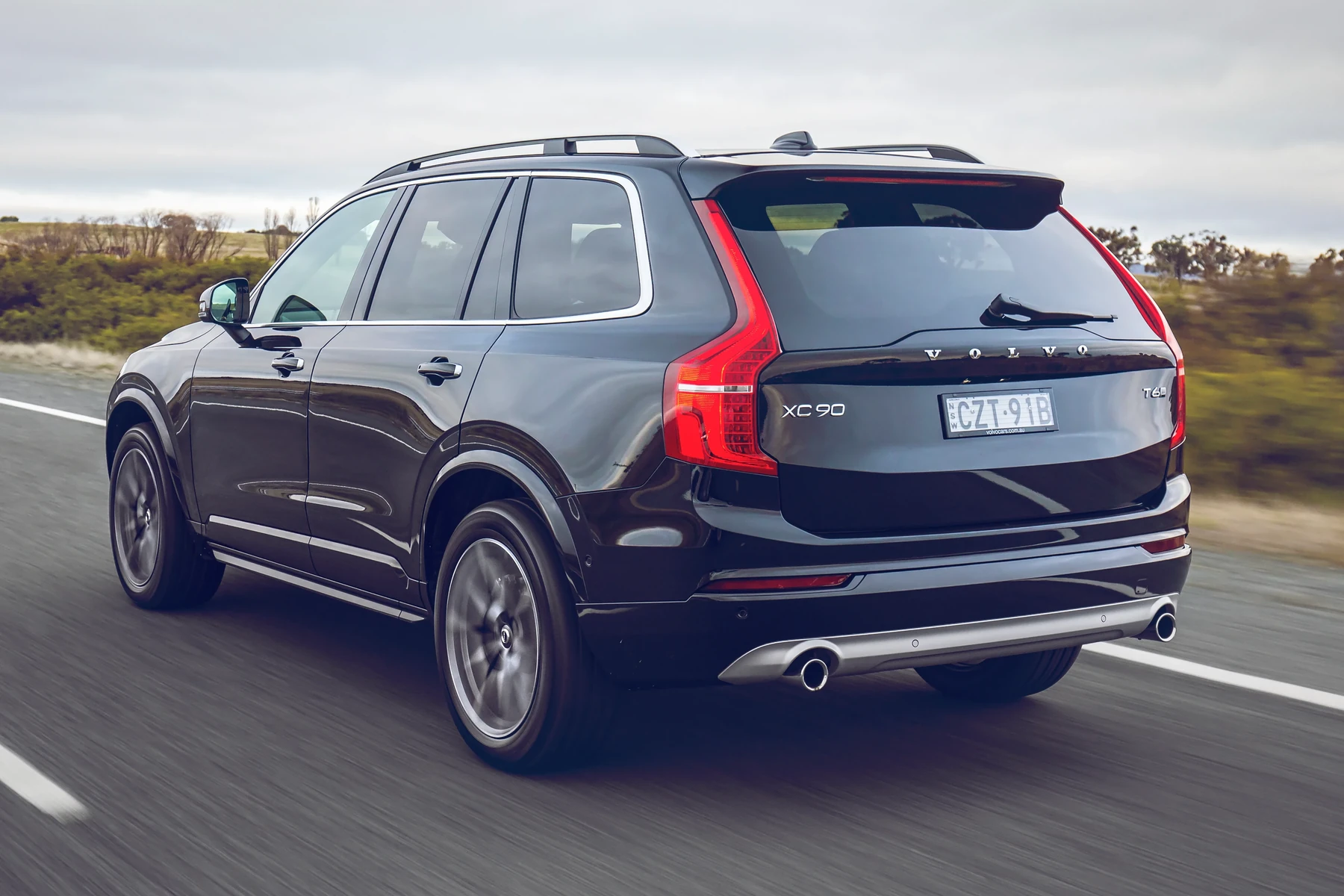
The XC90 model year also plays a critical role. Most models from 2016 onwards feature Apple CarPlay as a standard or available option. If your XC90 does not support CarPlay, you might need to explore aftermarket solutions.
For related context, you may also want to read Volvo XC90 driver side ac not working.
Setup Sequence: How to Connect Your iPhone to Apple CarPlay
Establishing a connection between your iPhone and Volvo XC90 is straightforward. Follow these steps:
- Ensure Bluetooth is enabled on your iPhone.
- Connect your iPhone to the XC90 using a Lightning cable.
- On your XC90’s infotainment system, select “Apple CarPlay” from the menu.
- Follow any prompts on your iPhone to complete the setup.
- Once connected, you should see the CarPlay interface on your XC90’s display.
Permissions and Connectivity: Ensuring Proper Functionality
For Apple CarPlay to function correctly, specific permissions and settings must be enabled:

Check Bluetooth Settings
Make sure Bluetooth is activated on both your iPhone and XC90. If you encounter issues, try turning Bluetooth off and then on again on both devices to refresh the connection. You can also use Volvo XC90 radio screen not working as a helpful next guide on the same ownership topic.
Allow CarPlay When Locked
On your iPhone, navigate to Settings > General > CarPlay > select your vehicle, and ensure that “Allow CarPlay While Locked” is toggled on for uninterrupted access.
Software Updates
Both your iPhone and XC90 should be running the latest software versions. Check for updates on your iPhone under Settings > General > Software Update. For the XC90, updates can typically be found in the car’s settings menu.
Common Failure Points: Identifying Why CarPlay Might Not Work
Several factors can lead to Apple CarPlay not functioning properly in your XC90: This connects closely with Volvo XC90 dashboard display not working if you want to compare the topic in more detail.
- Faulty Cable: If you’re using a Lightning cable, ensure it’s functioning and not damaged. Testing with a different cable can help determine if this is the issue.
- Software Glitch: Temporary software glitches on either device can disrupt the connection. Restarting both the iPhone and XC90 can often resolve these issues.
- Incorrect Settings: Ensure that CarPlay is enabled in your XC90’s settings. If CarPlay was previously disabled, you may need to re-enable it.
Reset and Update Steps: What to Do When Problems Persist
If Apple CarPlay continues to be unresponsive, consider these reset and update steps:
Resetting the XC90’s Infotainment System
Sometimes, resetting the car’s infotainment system can resolve persistent issues:
- Access the settings menu on your XC90’s display.
- Select the option for Settings > General > Reset.
- Follow the prompts to reset the system. This may take a few minutes.
- After resetting, reconnect your iPhone and check if CarPlay is working.
Updating Your XC90’s Software
To update the XC90’s software, refer to your owner’s manual for specific instructions, or visit your local dealership to ensure you have the latest software version.
💡 Evans Torres Tip: Regularly check for updates on both your iPhone and the XC90 to ensure compatibility with Apple CarPlay. Keeping your devices updated minimizes the risk of encountering issues.
Frequently Asked Questions
Why Is Apple CarPlay Not Connecting to My Volvo XC90?
CarPlay may not connect due to compatibility issues, incorrect settings, or faulty cables. Ensure your iPhone is compatible and try resetting both the car’s infotainment system and your phone.
What Should I Do If My iPhone Is Not Recognized by My Volvo?
Check your Lightning cable for damage, ensure Bluetooth is enabled, and verify that CarPlay is allowed in your iPhone settings. Restarting both devices can also help.
Can I Use Apple CarPlay Wirelessly in My Volvo XC90?
Wireless CarPlay is available in certain XC90 models. Check your owner’s manual or consult your dealer to confirm if your model supports this feature.
How Do I Reset My XC90’s Infotainment System?
To reset, access the settings menu on your XC90, then navigate to Settings > General > Reset. Follow the prompts to complete the reset.
Is There a Cost Associated with Updating My XC90’s Software?
Updating software may be free but can vary based on your dealership’s policies. It’s best to contact your local Volvo dealer for specific pricing information.
What to Do Next
If Apple CarPlay is still not functioning in your Volvo XC90 after following these steps, consider visiting your local dealership for further assistance. They can perform a thorough diagnostic and provide solutions tailored to your vehicle’s needs.
Author

Author

Evans Torres
I’m Evans Torres, an automotive engineer who loves Volvo cars. I graduated in Automotive Engineering from USC. I have worked in the car industry for years and now share my knowledge on The Volvo Life. I started this blog to connect with other Volvo fans. I offer tips, news, and advice to help you care for your car. My goal is to help you keep your Volvo in great shape and find all the best things about it. Join me as we discover everything Volvo has to offer!