



Keeping your Volvo XC60’s software up to date is vital for ensuring the vehicle operates smoothly and efficiently. By following the steps outlined in this guide, you can confidently perform the update yourself.
Updating the software in your Volvo XC60 is essential for maintaining optimal performance. This guide covers how to update software in Volvo XC60, detailing necessary tools, checking your current version, and step-by-step instructions for a successful update.
- Essential Tools and Equipment for: Before you start the software update process, gather the necessary tools to ensure a.
- How to Check the Current: Knowing your current software version is crucial to determine if an update is necessary..
- Step-by-Step Process to Update Software: Follow these detailed steps to update the software in your Volvo XC60 efficiently and.
- Safety Precautions While Updating Software: Ensuring safety during the update process is essential..
- Common Mistakes to Avoid During: Being aware of common pitfalls can help you avoid complications during your software update..
Essential Tools and Equipment for Updating Software in Your Volvo XC60
Before you start the software update process, gather the necessary tools to ensure a smooth experience. Having the right equipment will help prevent issues during the update.
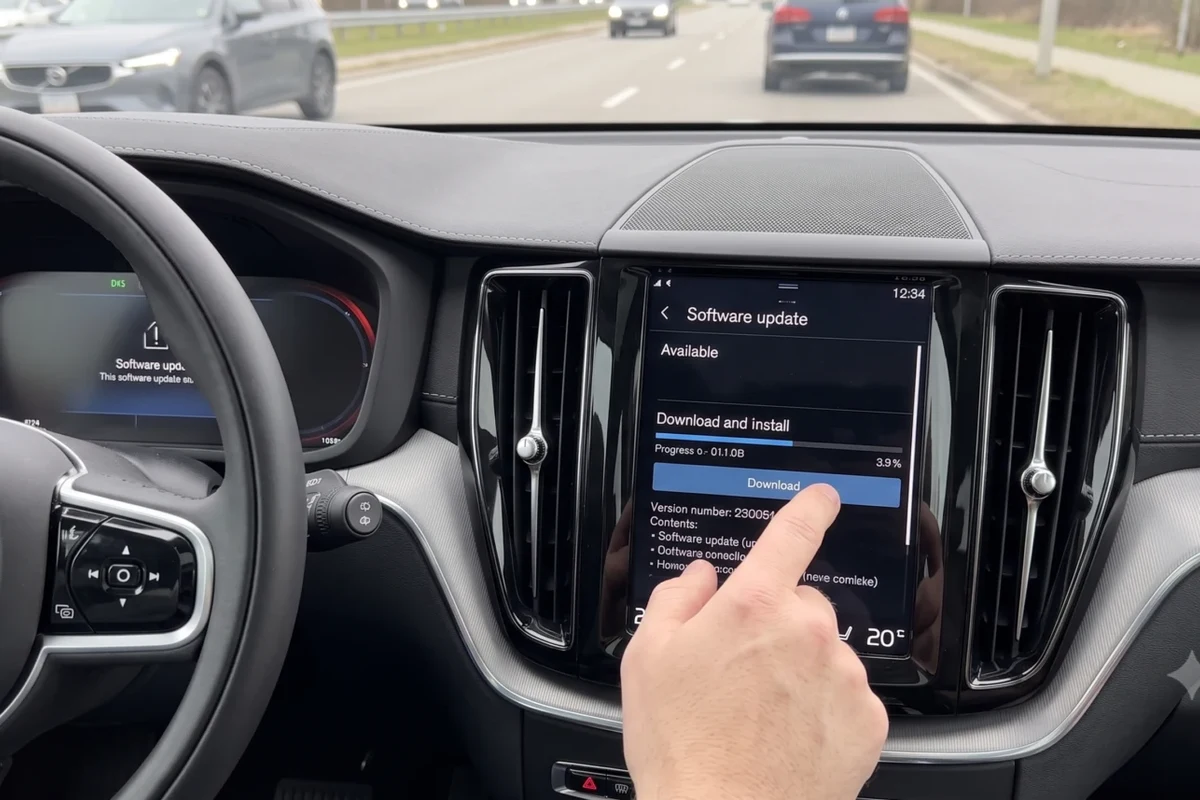
What You Will Need Before Starting the Update
- USB flash drive (8GB or larger)
- Computer with internet access
- Volvo XC60 owner’s manual for model-specific details
Make sure your USB flash drive is formatted to FAT32 for compatibility. Refer to your owner’s manual for any model-specific requirements that may apply to your software update process. For related context, read how to check tire pressure in volvo xc60.
How to Check the Current Software Version in Your Volvo XC60
Knowing your current software version is crucial to determine if an update is necessary. This step ensures you’re only downloading updates when they are available.
Turn on your XC60 and navigate to the “Settings” menu on the Sensus display. Select “About” to find your current software version. Compare this version with the latest available version on the official Volvo support site. You can also use how to adjust front headrest in volvo xc60 as the next practical guide.
Procedures and part numbers change between model years and engines, so confirm that these steps apply to your exact car before you start.
Step-by-Step Process to Update Software in Volvo XC60
Follow these detailed steps to update the software in your Volvo XC60 efficiently and safely. For related context, read how to adjust headrest in volvo xc60.
- Visit the official Volvo support page.
Access the Volvo website to find the software updates available for your specific model year.
- Download the appropriate software for your model year.
Make sure to select the correct version to avoid compatibility issues.
- Transfer the software to a USB drive.
Insert the USB drive into your computer and copy the downloaded software files onto it.
- Plug the USB into your XC60 and follow the on-screen instructions.
Start your vehicle and connect the USB drive. Follow the prompts on the screen to initiate the update process. For official guidance on this, see Volvo Cars official website.
Skipping the torque value or reusing a one-time fastener is the usual way a simple Volvo job turns into an expensive one.
Safety Precautions While Updating Software
Ensuring safety during the update process is essential. Take the following precautions to avoid any complications. This also connects with how to change battery in 2016 volvo xc60 key fob before you pay, sign, or book.
- Ensure your vehicle is parked in a safe, dry location.
- Avoid interruptions by ensuring your vehicle’s battery is fully charged.
- Do not turn off the ignition or remove the USB drive until the update is complete.
Follow the steps for how to update software in volvo xc60 in order and treat the owner’s manual for your model year as the final word on procedure and torque values.
Common Mistakes to Avoid During the Update Process
Being aware of common pitfalls can help you avoid complications during your software update.
Using the wrong software version can lead to compatibility issues. Interrupting the update process can cause software corruption. Neglecting to check the USB drive for proper formatting before transferring files. For related risk checks, compare this with how to change battery in 2017 volvo xc60 key fob.
How to Confirm the Software Update Was Successful
After the update, it’s important to verify that the software update was successful to ensure optimal performance. You can also use how to change battery in 2020 volvo xc60 key fob as the next practical guide.

- Return to the “Settings” menu and select “About” to check the new software version.
- Look for any prompts or notifications indicating that the update was successful.
Count the parts, fluids, and special tools before you begin and compare the total with a workshop quote so you know whether the job really saves money.
Troubleshooting: What to Do If Your Software Update Fails
If you encounter issues during the update, follow these troubleshooting steps to resolve them.
Ensure the USB drive is properly formatted and contains the correct files. Restart the vehicle and attempt the update again. Consult the official Volvo support page for specific error codes or solutions. For related context, read how to fold down 3rd row seats in volvo xc60.
When to Seek Professional Help for Software Updates
There are times when it may be best to consult a technician or visit a dealership for software updates.
- If you experience repeated failures during the update process.
- When you’re unsure about the correct software version for your model.
- If your vehicle exhibits issues even after an attempted update.
💡 Evans Torres Tip: Lay out every tool and part on a towel before you start; most mid-job mistakes on a Volvo come from a missing socket or a forgotten clip, not from the repair itself.
How to Update Software in Volvo XC60 for Optimal Performance
Updating the software in your Volvo XC60 is crucial for ensuring optimal performance. Begin by gathering necessary tools like a USB flash drive and your vehicle’s owner’s manual. For official guidance on this, see NHTSA recall lookup by VIN.
Check your current software version through the “Settings” menu, then follow the step-by-step instructions to download and transfer the latest software, ensuring you adhere to safety precautions throughout the process.
Gather an 8GB or larger USB flash drive and format it to FAT32. Check the current software version in the “Settings” menu under “About.”. Follow on-screen prompts after connecting the USB to initiate the update.
This guide on how to update software in volvo xc60 is general information. Rules, fees, rents, salaries, service coverage, product details, and procedures can change, so confirm important points with the manufacturer, retailer, or official app documentation before acting.
Frequently Asked Questions
You will need a USB flash drive (8GB or larger), a computer with internet access, and your Volvo XC60 owner’s manual for model-specific details. Ensure the USB flash drive is formatted to FAT32 for compatibility.
To check your current software version, turn on your XC60 and navigate to the “Settings” menu on the Sensus display. Select “About” to view the current version and compare it with the latest available version on the official Volvo support site.
Start by visiting the official Volvo support page to find software updates for your model year. Download the appropriate software, transfer it to a USB drive, and then plug the USB into your XC60 to follow the on-screen instructions.
Ensure your vehicle is parked in a safe, dry location and that the battery is fully charged to avoid interruptions. Do not turn off the ignition or remove the USB drive until the update is complete to prevent software corruption.
After the update, return to the “Settings” menu and select “About” to check the new software version. Look for any prompts or notifications that indicate the update was successful.
If you encounter issues during the update, ensure the USB drive is properly formatted and contains the correct files before restarting the vehicle. You can also consult the official Volvo support page for specific error codes or solutions.
Final Thoughts
Keeping your Volvo XC60’s software up to date is vital for ensuring the vehicle operates smoothly and efficiently. By following the steps outlined in this guide, you can confidently perform the update yourself.
However, always refer to your owner’s manual for specific instructions and seek professional assistance if needed.
